Tampilkan postingan dengan label official. Tampilkan semua postingan

How to Update Galaxy S4 I9505 with Android 4 2 2 XXUBMGA Jelly Bean Official Firmware

Minggu, 05 Januari 2014

0 komentar
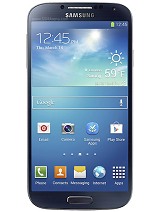
Samsung recently released a new Android 4.2.2 Jelly Bean update with base firmware XXUBMGA for the owners of Samsung Galaxy S4 (GT-I9505) in Germany, Spain, and Nordic countries. The new official firmware is now available as an Over-The-Air (OTA) update as well as through Samsung KIES.

Firmware details
PDA: I9505XXUBMGA
CSC: I9505OXABMGA
MODEM: I9505XXUBMGA
Version: Android 4.2.2
Built date: Jul 11, 2013
Regions: Germany, Spain, Nordic countries

Samsung Galaxy S4 I9505 users who missed the OTA update notification or unable to access the update over Samsung KIES, may follow our step-by-step guide to install the update manually.

Pre-requisites
1. Install USB Drivers for Samsung Galaxy S4 on the computer.
2. Enable USB Debugging Mode on the phone by navigating to Settings >> Developer Options.
3. Make a backup of all your important data before following the guide.
4. The Galaxy S4 should be factory unlocked and not locked to any particular carrier.
5. Ensure the battery of the phone is charged more than 80 per cent.
6. The Android 4.2.2 XXUBMGA Jelly Bean firmware is compatible only with Samsung Galaxy S4 I9505. Applying these to any incorrect variant might brick the device. Verify the model number of the Galaxy S4 by navigating to Settings >> About Phone.

File Required
1. Android 4.2.2 XXUBMGA Jelly Bean Firmware for Samsung Galaxy S4 I9505
2. Odin 3.07

Steps to Update Galaxy S4 I9505 with Android 4.2.2 XXUBMGA Jelly Bean Firmware
Step 1: Extract Firmware zip file that you downloaded already from above link using winrar/7zip/winzip or any other extracting tool, you will get a .tar.md5 file and some other files.
Step 2: Extract Odin zip file and you will get Odin3 v3.07.exe along with few other files.
Step 3: Power off your phone. Wait 5-6 seconds for vibration to confirm complete switch off.
Step 4: Boot the device into Download Mode by pressing and holding Volume Down, Home and Power buttons together until a construction Android robot icon with a warning triangle appears on screen. Now press the Volume Up button to enter Download Mode.
Step 5: Run Odin on the computer as an Administrator.
Step 6: Connect the Galaxy S4 to the computer using USB cable while it is in the Download Mode. Wait until Odin detects the device. When the device is connected successfully, the ID: COM box will turn blue with the COM port number. Additionally, the successful connected will be indicated by a message saying Added.
Note: If the Added message does not appear, then try re-install USB drivers or changing the port on the computer.
Step 7: Choose the following files in Odin from extracted I9505XXUBMGA firmware folder by using respective checkboxes:
  • Select the PDA checkbox, and choose the file named .tar or .md5.
  • Click the Phone checkbox, and choose the file with modem in its name (ignore if there is no such file)
  • Click the CSC checkbox, and select the file with csc in its name (ignore if such file is missing)
  • Choose the PIT checkbox, and choose the .pit file. Use only the file obtained during extracting in step 1 above, otherwise ignore it.
Step 8: In Odin, enable Auto Reboot and F. Reset Time checkboxes. Also, ensure the Re-Partition checkbox is chosen only if a .pit file was chosen in the previous step.
Step 9: Verify everything suggested in Step 7 and Step 8 is done correctly. Then hit the START button to begin the installation process.
Step 10: Once the installation process is completed, your phone will restart and soon you will see a PASS message with green background in the left-most box at the very top of the Odin. You can now unplug the USB cable to disconnect your device from computer.

Samsung Galaxy S4 I9505 should be now updated with official Android 4.2.2 XXUBMGA Jelly Bean. Head over to Settings >> About Phone to verify the software version running on the device.

Note: If Galaxy S4 I9505 stuck at booting animation after Step 10 then go to recovery mode (press and hold the Volume Up, Home and Power buttons together) and perform Wipe data/Factory Reset and Wipe Cache Partition task before selecting reboot system now function. In recovery mode use Volume keys to navigate between options and Power key to select the option. Please note, performing wiping task will erase your device internal memory data and not external SD card data.

Click here to know How to Root Galaxy S4 I9505 running on Android 4.2.2 XXUBMGA Jelly Bean firmware.
Read More..

How to Update Galaxy S4 Mini I9190 with Android 4 2 2 UBUBMK2 Jelly Bean Official Firmware

0 komentar
Samsung Galaxy S4 Mini with model number GT-I9190 has started receiving Android 4.3 Jelly Bean update with firmware build number I9190UBUBMK2. The new official firmware is now available as an Over-The-Air (OTA) update as well as through Samsung KIES.

Firmware details
PDA: I9190UBUBMK2
CSC: I9190UUBBMK1
MODEM: I9190UBUBMK2
Version: Android 4.2.2
Build date: Nov 12, 2013
Regions: Trinidad and Tobago, Uruguay, Argentina, Dominican Republic

Samsung Galaxy S4 Mini I9190 users who missed the OTA update notification or unable to access the update over Samsung KIES, may follow our step-by-step guide to install the update manually.

Pre-requisites
1. Install USB Drivers for Samsung Galaxy S4 Mini on the computer.
2. Enable USB Debugging Mode on the phone by navigating to Settings >> Developer Options.
3. Make a backup of all your important data before following the guide.
4. The Galaxy S4 Mini should be factory unlocked and not locked to any particular carrier.
5. Ensure the battery of the phone is charged more than 80 percent.
6. The Android 4.2.2 UBUBMK2 Jelly Bean firmware is compatible only with Samsung Galaxy S4 Mini with model number GT-I9190. Applying this to any incorrect variant might brick the device. Verify the model number of the Galaxy S4 Mini by navigating to Settings >> About Phone.

Files Required
1. Android 4.2.2 UBUBMK2 Jelly Bean Firmware (Alternative Link) for Galaxy S4 Mini I9190
2. Odin 3.07

Steps to Update Galaxy S4 Mini I9190 with Android 4.2.2 UBUBMK2 Jelly Bean Firmware
Step 1: Extract Firmware zip file using winrar/7zip/winzip or any other extracting tool, you will get a .tar.md5 file and some other files.
Step 2: Extract Odin zip file and you will get Odin3 v3.07.exe along with few other files.
Step 3: Switch off the Galaxy S4 Mini.
Step 4: Boot the device into Download Mode by pressing and holding Volume Down, Home and Power buttons together until a construction Android robot icon with a warning triangle appears on screen. Now press the Volume Up button to enter Download Mode.
Step 5: Run Odin on the computer as an Administrator.
Step 6: Connect the Galaxy S4 Mini to the computer using USB cable while it is in the Download Mode. Wait until Odin detects the device. When the device is connected successfully, the ID: COM box will turn to light blue with the COM port number. Additionally, the successful connected will be indicated by a message saying Added.

Note: If the Added message does not appear, then try re-install USB drivers or changing the port on the computer.

Step 7: Select the following files in Odin from extracted I9190UBUBMK2 firmware folder:
  • Click the PDA button and select the .tar.md5 file.
  • Click the Phone button and select file with MODEM in its name. Ignore if there is no such file.
  • Click the CSC button and select file with CSC in its name. Ignore if there is no such file.
  • Click the PIT button and select the .pit file. Ignore if there is no such file.
    Step 8: In Odin, enable Auto Reboot and F. Reset Time checkboxes. Also, ensure the Re-Partition checkbox is chosen only if a .pit file was chosen in the previous step.
    Step 9: Verify everything suggested in Step 7 and Step 8 is done correctly. Then hit the Start button to begin the installation process.
    Step 10: Once the installation process is completed, your phone will restart and soon you will see a PASS message with green background in the left-most box at the very top of the Odin. You can now unplug the USB cable to disconnect it from the computer.

    Samsung Galaxy S4 Mini I9190 should be now updated with official Android 4.2.2 UBUBMK2 Jelly Bean. Head over to Settings >> About Phone to verify the software version running on the device.

    Note: If Galaxy S4 Mini I9190 stuck at booting animation after Step 10 then go to recovery mode (press and hold the Volume Up, Home and Power buttons together) and perform Wipe data/Factory Reset and Wipe Cache Partition task before selecting reboot system now function. In recovery mode use Volume keys to navigate between options and Power key to select the option. Please note, performing wiping task will erase your device internal memory data and not external SD card data.

    Click here to know How to Root Galaxy S4 Mini I9190 running on Android 4.2.2 Jelly Bean firmware.
    Read More..

    How to Update Galaxy Grand Duos I9082 with Android 4 1 2 XXAMD6 Jelly Bean Official Firmware

    Sabtu, 04 Januari 2014

    0 komentar
    Samsung has rolled out another official Jelly Bean update, Android 4.1.2 with base firmware XXAMD6, for the international version of Galaxy Grand Duos bearing model number GT-I9082. The new official firmware is now available for download through Samsung KIES as well as Over-The-Air (OTA) update in Southeast Asia countries including Indonesia, Malaysia, Philippines, Singapore,Vietnam and Thailand.

    Firmware details
    PDA: I9082XXAMD6
    CSC: I9082OLBAMD3
    Version: Android 4.1.2
    Built date: April, 2013
    Regions: Indonesia, Malaysia, Philippines, Singapore, Vietnam, Thailand

    The Galaxy Grand Duos users who failed to receive the OTA update notification or unable to access the update over Samsung KIES can download and install the same manually, using our step-by-step guide.

    Pre-requisites
    1. Install USB Driver for Samsung Galaxy Grand Duos on the computer.
    2. Enable USB Debugging Mode.
    3. Make a backup of all your important data before following the guide.
    4. The Galaxy Grand Duos should be factory unlocked and not locked to any particular carrier.
    5. Ensure the battery of the phone is charged more than 80 per cent.
    6. The Android 4.1.2 XXAMD6 Jelly Bean firmware is compatible only with Samsung Galaxy Grand Duos I9082 and installing this on any incorrect variant will brick the device.

    File Required
    1. Android 4.1.2 XXAMD6 Jelly Bean Firmware
    2. Odin 3.07

    Steps to Update Galaxy Grand Duos I9082 with Android 4.1.2 XXAMD6 Jelly Bean Firmware
    Step 1: Extract Firmware zip file that you downloaded already from above link, you will get a .tar.md5 file and some other files.
    Step 2: Extract Odin zip file and you will get Odin3 v3.07.exe along with few other files.
    Step 3: Power off your phone. Wait 5-6 seconds for vibration to confirm complete switch off.
    Step 4: Boot the device into Download Mode by pressing and holding Volume Down + Home buttons together and then press the Power button until the device turns on. Now press the Volume Up button to enter Download Mode.
    Step 5: Run Odin on the computer.
    Step 6: Connect the Galaxy Grand Duos to the computer using USB cable while it is in the Download Mode. Wait until Odin detects the device. When the device is connected successfully, the ID: COM box will turn yellow with the COM port number. Additionally, the successful connected will be indicated by a message saying Added. If Odin fails to detect the device then re-install USB driver.
    Step 7: Choose the following files in Odin from extracted I9082XXAMD6 firmware folder by using respective checkboxes:
    • Select the PDA checkbox, and choose the file named .tar or .md5.
    • Click the Phone checkbox, and choose the file with modem in its name (ignore if there is no such file)
    • Click the CSC checkbox, and select the file with csc in its name (ignore if such file is missing)
    • Choose the PIT checkbox, and choose the .pit file. Use only the file obtained during extracting in step 1 above, otherwise ignore it.
    Step 8: In Odin, enable Auto Reboot and F. Reset Time checkboxes. Also, ensure the Re-Partition checkbox is chosen only if a .pit file was chosen in the previous step.
    Step 9: Verify everything suggested in Step 7 and Step 8 is done correctly. Then hit the START button to begin the flashing process.
    Step 10: Once flashing completed, your phone will restart and soon you will see a PASS message with green background in the left-most box at the very top of the Odin. You can now unplug the USB cable to disconnect your device from computer.

    Samsung Galaxy Grand Duos I9082 should be now updated with official Android 4.1.2 XXAMD6 Jelly Bean firmware. Head over to Settings>> About Phone to verify the software version running on the device.

    Note: If Galaxy Grand Duos I9082 stuck at booting animation after Step 10 then go to recovery mode (press and hold the Volume Up, Home and Power buttons together) and perform Wipe data/Factory Reset and Wipe Cache Partition task before selecting reboot system now function. In recovery mode use Volume keys to navigate between options and Power key to select the option. Please note, performing wiping task will erase your device internal memory data and not external SD card data.

    Click here to know How to Root Galaxy Grand Duos I9082 running on Android 4.1.2 XXAMCE Jelly Bean firmware.
    Read More..

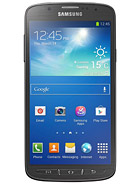
    How to Update Galaxy S4 Active I9295 with Android 4 2 2 XXUAMF7 Jelly Bean Official Firmware

    0 komentar
    The international version of Samsung Galaxy S4 Active (GT-I9295) in Southeast Asian countries have received Android 4.2.2 Jelly Bean update with firmware build number I9295XXUAMF7. The new official firmware is now available as an Over-The-Air (OTA) update as well as through Samsung KIES.

    Firmware details
    PDA: I9295XXUAMF7
    CSC: I9295OLBAMG2
    MODEM: I9295XXUAMF7
    Version: Android 4.2.2
    Built date: Jun 25, 2013
    Regions: Malaysia, Philippines, Singapore

    Samsung Galaxy S4 Active I9295 users who missed the OTA update notification or unable to access the update over Samsung KIES, may follow our step-by-step guide to install the update manually.

    Pre-requisites
    1. Install USB Drivers for Samsung Galaxy S4 Active on the computer.
    2. Enable USB Debugging Mode on the phone by navigating to Settings >> Developer Options.
    3. Make a backup of all your important data before following the guide.
    4. The Galaxy S4 Active should be factory unlocked and not locked to any particular carrier.
    5. Ensure the battery of the phone is charged more than 80 percent.
    6. The Android 4.2.2 XXUAMF7 Jelly Bean firmware is compatible only with Samsung Galaxy S4 Active I9295. Applying this to any incorrect variant might brick the device. Verify the model number of the Galaxy S4 Active by navigating to Settings >> About Phone.

    File Required
    1. Android 4.2.2 XXUAMF7 Jelly Bean Firmware (Mirror Link) for Galaxy S4 Active I9295
    2. Odin 3.07

    Steps to Update Galaxy S4 Active I9295 with Android 4.2.2 XXUAMF7 Jelly Bean Firmware
    Step 1: Extract Firmware zip file using winrar/7zip/winzip or any other extracting tool, you will get a .tar.md5 file and some other files.
    Step 2: Extract Odin zip file and you will get Odin3 v3.07.exe along with few other files.
    Step 3: Power off your phone.
    Step 4: Boot the device into Download Mode by pressing and holding Volume Down, Home and Power buttons together until a construction Android robot icon with a warning triangle appears on screen. Now press the Volume Up button to enter Download Mode.
    Step 5: Run Odin on the computer as an Administrator.
    Step 6: Connect the Galaxy S4 Active to the computer using USB cable while it is in the Download Mode. Wait until Odin detects the device. When the device is connected successfully, the ID: COM box will turn blue with the COM port number. Additionally, the successful connected will be indicated by a message saying Added.

    Note: If the Added message does not appear, then try re-install USB drivers or changing the port on the computer.

    Step 7: Choose the following files in Odin from extracted I9295XXUAMF7 firmware folder by using respective checkboxes:
    • Select the PDA checkbox, and choose the file named .tar or .md5.
    • Click the Phone checkbox, and choose the file with modem in its name (ignore if there is no such file)
    • Click the CSC checkbox, and select the file with csc in its name (ignore if such file is missing)
    • Choose the PIT checkbox, and choose the .pit file. Use only the file obtained during extracting in step 1 above, otherwise ignore it.
    Step 8: In Odin, enable Auto Reboot and F. Reset Time checkboxes. Also, ensure the Re-Partition checkbox is chosen only if a .pit file was chosen in the previous step.
    Step 9: Verify everything suggested in Step 7 and Step 8 is done correctly. Then hit the START button to begin the installation process.
    Step 10: Once the installation process is completed, your phone will restart and soon you will see a PASS message with green background in the left-most box at the very top of the Odin. You can now unplug the USB cable to disconnect your device from computer.

    Samsung Galaxy S4 Active I9295 should be now updated with official Android 4.2.2 XXUAMF7 Jelly Bean. Head over to Settings >> About Phone to verify the software version running on the device.

    Note: If Galaxy S4 Active I9295 stuck at booting animation after Step 10 then go to recovery mode (press and hold the Volume Up, Home and Power buttons together) and perform Wipe data/Factory Reset and Wipe Cache Partition task before selecting reboot system now function. In recovery mode use Volume keys to navigate between options and Power key to select the option. Please note, performing wiping task will erase your device internal memory data and not external SD card data.

    Click here to know How to Root Galaxy S4 Active I9295 running on Android 4.2.2 Jelly Bean firmware.
    Read More..

    Official Geocaching App for Android Full APK

    Kamis, 12 September 2013

    0 komentar


    Requirements: Android 1.5+


    Go geocaching with your Android phone: Groundspeak’s Official Geocaching App


    Read more »
    Read More..

    Copyright © 2010 Android Application | Powered By Blogger